How to Check Slow PC
Easy for IT: Slow PC Check — Specs, Temperatures, Upgrades & Replace Advice
Fastest Starting Point for IT: Check Task Manager (Ctrl + Shift + Esc) and msinfo32 first, then check CPU, GPU, and SSD temperatures before deciding whether to upgrade RAM/SSD or recommend a new PC/laptop.
1. Step 1: Check Specs, Temperatures & What Is Slowing Down
Option A: System Specs & Task Manager (Quick Spec & Load Check)
- Press Win + R, type
msinfo32, and press Enter to see the exact Processor, Installed Physical Memory (RAM), and system model. - Press Ctrl + Shift + Esc → Performance tab to check CPU, Memory (slots used & speed), and Disk (SSD vs. HDD and active time).
- How to verify: Confirm the exact CPU, RAM size, and whether the system boots from an SSD or HDD.
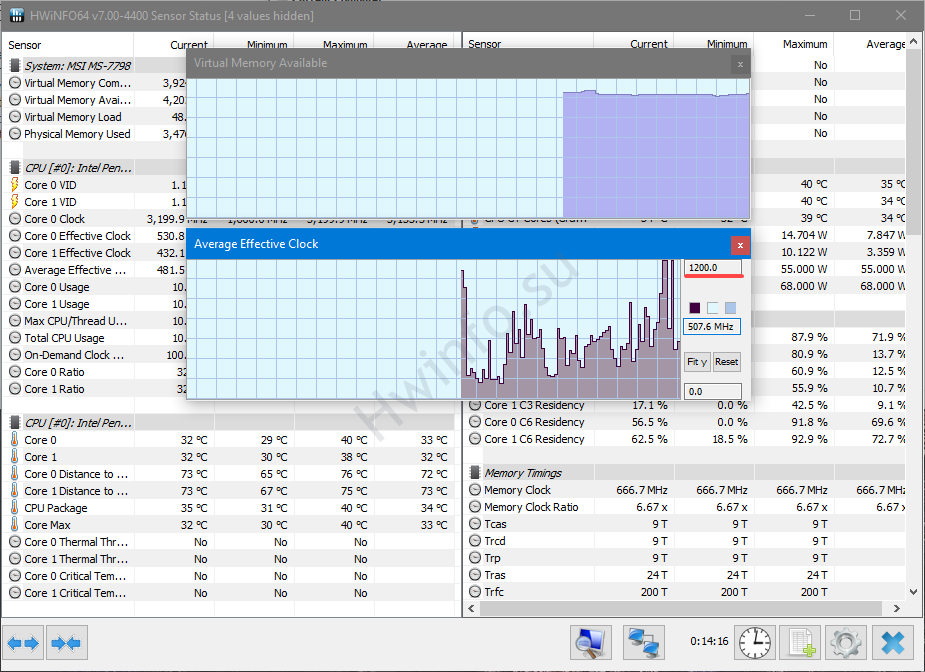
Option B: HWiNFO64 (Check CPU, GPU & SSD Temperatures)
- Open HWiNFO64 (Sensors-only) and check CPU temperatures, GPU temperature, and Drive / SSD temperatures during normal use.
- Look for high temperatures, thermal throttling warnings, loud fans, or dusty vents/heatsinks.
- How to verify: Confirm temperatures stay within safe operating ranges and do not trigger throttling or shutdowns during normal tasks.
Option C: Startup Apps, Storage Space & Reliability Monitor
- Check Task Manager → Startup apps, verify free space on
C:in File Explorer, and press Win + R →perfmon /relto spot recent errors or updates. - How to verify: Confirm whether slowness is caused by startup bloat, low
C:space, or recent software/update issues.
2. Step 2: Fix, Upgrade RAM/SSD, or Recommend a New PC
| What You Found | What It Means | How to Fix, Upgrade & Verify (Easy for IT) |
|---|---|---|
| CPU, GPU, or SSD overheating (high temps, hot air/vents, fan noise, lag under load) | Dust buildup, dried thermal paste, blocked airflow, or cooling issue | Clean dust from vents/fans/heatsinks, ensure airflow is not blocked, and check cooling/thermal paste if needed. How to verify: Re-check temperatures in HWiNFO64 and confirm temperatures drop and performance stays steady. |
| Low RAM (e.g., 4 GB or maxed-out memory) with upgradeable RAM slots | System runs out of memory when multitasking or browsing | Check specs/slots first, then upgrade RAM (matching DDR type/speed and slot limits). How to verify: Confirm total RAM increases in msinfo32 and Task Manager → Memory, and test with normal apps open. |
| Slow mechanical HDD or small/aging drive with SSD support | Storage speed bottleneck slowing boot and app loading | Upgrade to an SSD (SATA or NVMe per device compatibility) and clone or clean-install Windows. How to verify: Confirm the SSD appears in Task Manager → Disk and boot/app launch times improve noticeably. |
| Startup bloat, low C: space, or bad driver/update | Software/OS bottleneck on capable hardware | Disable unneeded startup apps, free up C: space, run DISM /Online /Cleanup-Image /RestoreHealth and sfc /scannow, or roll back/reinstall drivers or recent problematic updates.How to verify: Reboot and confirm idle CPU/Disk usage settles and daily tasks run smoothly. |
| Too old spec (very old CPU generation, non-upgradeable specs, or costly/multiple faults) | Hardware is too dated to keep up with modern Windows/apps cost-effectively | Recommend purchasing a new laptop or PC after backing up user data. Avoid spending heavily upgrading an overly old system when a replacement gives better reliability and longevity. How to verify: Back up important files safely and confirm replacement specs match the user's workload before handover. |
3. Step 3: Quick IT Handover Checklist
- Back up important user files before upgrading drives, reinstalling Windows, or replacing the unit.
- How to verify: Confirm backup files are intact before starting changes.
- Re-check Task Manager, HWiNFO64 temperatures, and
perfmon /rel. - How to verify: Confirm temperatures, RAM/SSD detection, and normal app performance are all good.