How to Check Windows Blue Screen (BSOD)
Recommended Starting Point for Beginners
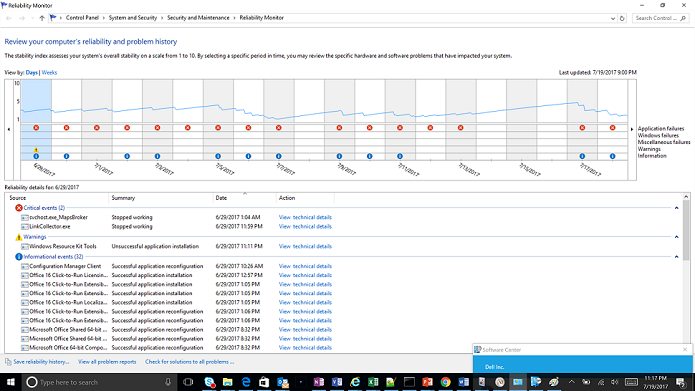
Easiest for IT: Reliability Monitor (perfmon /rel) — No extra downloads needed, shows a visual timeline with red X icons, and gives simple descriptions so beginners can spot recent crashes right away.
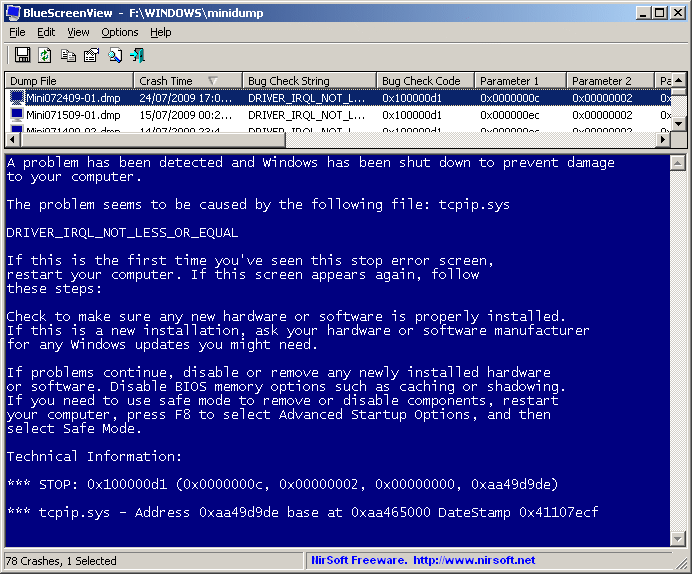
Next Step When You Need the Exact Driver: BlueScreenView — Best right after Reliability Monitor when you want to see which .sys driver file is highlighted in pink/red.
1. Step 1: Check What Caused the Crash (Pick One Tool)
Option A: Reliability Monitor (Easiest for Beginners — Built-In)
- Press Win + R, type
perfmon /rel, and press Enter. - Click the red "X" icon on the date of the Blue Screen → double-click "Windows stopped working" → note the Stop Code (for example,
0x0000000aorDRIVER_IRQL_NOT_LESS_OR_EQUAL). - Check the Windows Updates section right next to the crash date to see if an update installed right before the crash.
- How to verify: Confirm the crash date/time and any recent update installation date line up with when the problem started.
Option B: NirSoft BlueScreenView (Fastest Way to Spot a Bad Driver)
- Open BlueScreenView and look at the top list for the latest crash dump entry.
- Look at the bottom list for rows highlighted in pink/red — that
.sysfile (for example,nvlddmkm.sysorrt640x64.sys) points to the driver involved. - How to verify: Confirm a crash entry appears with the recent crash date; if the list is empty, no minidump was saved for that crash.
Option C: WhoCrashed (Simple Summary from Dump Files)
- Open WhoCrashed and click Analyze.
- Read the Conclusion section for a short summary of the possible driver or hardware cause.
- How to verify: Confirm the analysis timestamp matches the latest crash in
C:\Windows\Minidump.
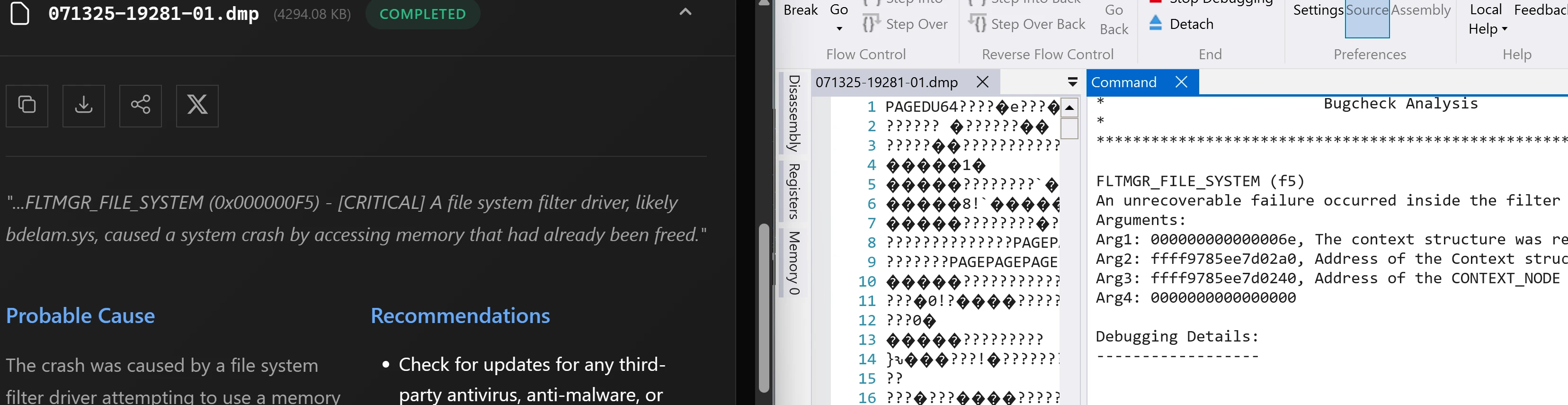
Option D: Microsoft WinDbg (Deep IT Check for Tough Cases)
- Open WinDbg as Administrator → File > Start debugging > Open dump file → pick the latest
.dmpfile inC:\Windows\Minidump. - Run
!analyze -vand checkIMAGE_NAMEorMODULE_NAMEto see the faulting module. - How to verify: Check whether a third-party
.sysdriver or system file is listed underIMAGE_NAME.
Option E: Event Viewer (Backup Check When Reliability Monitor Has Nothing)
- Press Win + R, type
eventvwr.msc, and press Enter. - Go to Windows Logs > System → click Filter Current Log... → enter
41, 1001, 6008in Event IDs → click OK. - How to verify: Look for Event ID
1001(BugCheck) for a Stop Code, or Event ID41(Kernel-Power) if power loss or forced shutdown occurred.
2. Step 2: Fix the Problem Based on What You Found
| If You See This... | What It Usually Means | How to Fix & Verify |
|---|---|---|
| Crash started right after a Windows Update (or stuck in a reboot loop after updating) | Buggy Windows update, failed update package, or auto-pushed driver update | Go to Settings > Windows Update > Update history > Uninstall updates (or open Control Panel > Programs and Features > View installed updates) and uninstall the latest update. If Windows won't boot normally, boot into Windows Recovery / Safe Mode > Troubleshoot > Advanced options > Uninstall Updates (remove latest quality or feature update). Then pause Windows Updates temporarily in Settings > Windows Update so it doesn't reinstall immediately. How to verify: Restart the PC and confirm Windows boots normally without Blue Screens, and check Windows Update to make sure the removed update hasn't reapplied automatically. |
A .sys driver name (e.g., nvlddmkm.sys, atikmpag.sys, Wi-Fi/LAN/Audio driver) |
Faulty, outdated, or conflicting driver | Open Device Manager (devmgmt.msc), right-click the device, and try Roll Back Driver first; if that is greyed out, uninstall the driver and reinstall the matching version from the laptop, motherboard, or GPU maker's site.How to verify: Check Device Manager for no warning icons and test the feature (display, Wi-Fi, sound) without crashing. |
| Crash started right after installing an app, utility, or security tool | Software conflict or bad background service | Uninstall the recently added app or conflicting utility via Control Panel > Programs and Features (or Settings > Apps), and disable unnecessary startup items in Task Manager > Startup apps. How to verify: Reboot normally and confirm the app/service no longer triggers a crash. |
CRITICAL_PROCESS_DIED or ntoskrnl.exe |
Corrupted Windows system files | Open Command Prompt as Administrator and run:DISM /Online /Cleanup-Image /RestoreHealththen run: sfc /scannowHow to verify: Confirm sfc /scannow finishes without remaining integrity errors, then restart. |
MEMORY_MANAGEMENT or PAGE_FAULT_IN_NONPAGED_AREA |
RAM issue, loose RAM stick, or unstable memory profile | Run Windows Memory Diagnostic (mdsched.exe) or MemTest86; if removable RAM is present, power off, unplug power, reseat the RAM sticks, or test one stick at a time.How to verify: Complete a memory scan with no errors reported and test normal booting. |
INACCESSIBLE_BOOT_DEVICE, UNMOUNTABLE_BOOT_VOLUME, or random freezes |
Storage drive problem, loose cable, or BIOS boot mode mismatch | Check BIOS boot/storage mode (such as AHCI vs. RAID/VMD) and check drive health using CrystalDiskInfo or run chkdsk C: /f /r in Administrator Command Prompt.How to verify: Confirm Windows boots cleanly and check that drive health status is normal. |
VIDEO_TDR_FAILURE or crashes under heavy load / warm room |
GPU driver timeout or hardware overheating/power issue | Clean-reinstall the graphics driver (using DDU in Safe Mode if needed) and check temperatures/fans/dust buildup on vents and coolers. How to verify: Run normal tasks or video playback and confirm temperatures stay reasonable without crashing. |
| Repeated crashes across multiple drivers/apps after trying fixes above | Deep OS corruption or possible underlying hardware fault | Back up important user data first, then perform a clean reformat / reinstall of Windows. If Blue Screens still happen right after a fresh Windows install with basic drivers, suspect a hardware fault (RAM, SSD, motherboard, power, or cooling) and test components. How to verify: After a fresh Windows install, check that Windows updates and core apps run stably without new Blue Screens. |
3. Step 3: Quick Checklist Before Finishing
- Back up important files before making major system changes, uninstalling key updates, or reformatting Windows.
- How to verify: Open backed-up files on another drive or confirm backup completion before proceeding.
- Unplug extra USB devices/hubs and check that cooling fans and airflow are clear.
- How to verify: Restart the PC and confirm no new red crash entries appear in
perfmon /rel.
4. Reference Videos & Tools
- Windows Has a Hidden Crash History | Reliability Monitor & Event Viewer
- How to Find Out Why Your Windows PC Crashed Using Reliability Monitor
- Check Crash Log and Fix BSOD in Windows
- WinDbg Crash Analyzer - Find Root Cause of Windows Blue Screen / Green Screen
- NirSoft BlueScreenView
- Resplendence WhoCrashed