How to Check Printer & Shared Folder Problem
Easy for IT: Quick Guide to Fix Printer & Shared Folder Issues on Windows
Fastest Starting Point for IT: Check Print Spooler in services.msc for printer issues, and test reaching the share via \\ServerIP\ShareName for shared folders. In mixed Windows 11 / Windows 10 / Windows 7 environments, walk through the checks step by step so IT learns what changes to make—starting with SMB 1.0 compatibility for older shares and a local (offline) username with a password plus print connection/authentication adjustments on Windows 11 printers.
Important IT Reminder (Windows 11 Sharing): When a Windows 11 PC shares a folder or printer over the network, you must use a local (offline) username with a password — do not use an account with a blank password (Windows 11 blocks blank-password network sharing by default). Set a password on the local account, grant it permissions on the shared folder or printer, and connect from client PCs using that username and password.
1. Step 1: Check Where the Printer or Shared Folder Fails (Easy for IT)
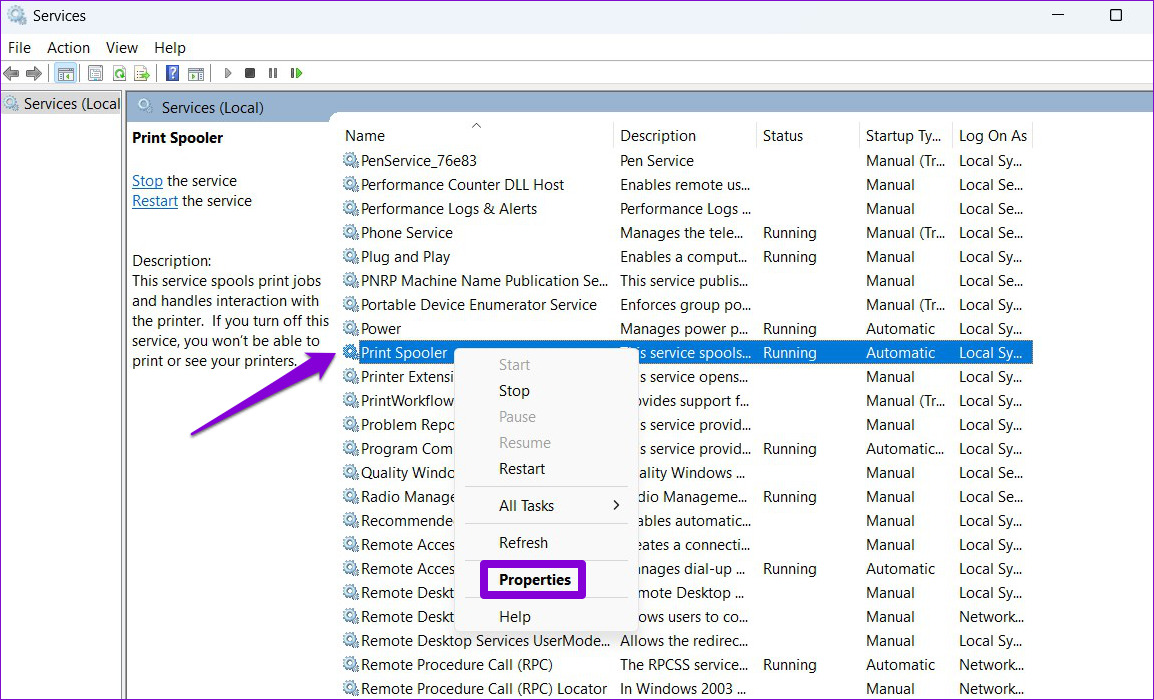
Option A: Print Queue & Print Spooler Check (Fastest Printer Check)
- Open Settings > Bluetooth & devices > Printers & scanners (or
control printers), select the printer, and open the print queue to cancel stuck jobs. - Press Win + R, type
services.msc, press Enter, locate Print Spooler, and check if Status is Running. - How to verify: Confirm stuck jobs clear and Print Spooler shows Running without immediately stopping.
Option B: Network Path, Ping & Permissions Check (Fastest Shared Folder Check)
- Press Win + R, type
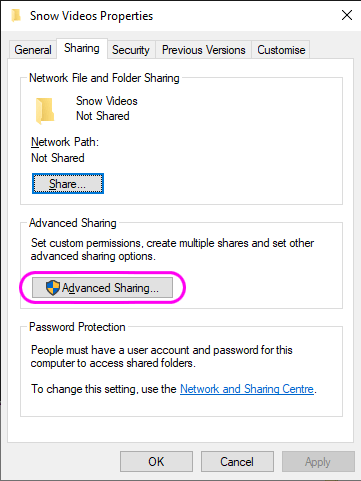
\\HostNameOrIP(for example,\\192.168.1.50), and press Enter to test if the host computer or NAS/server responds. - On the shared folder, right-click → Properties → check both the Sharing tab (Share... / Advanced Sharing...) and the Security tab (NTFS permissions).
- How to verify: Confirm whether the folder fails to open due to network reachability, wrong credentials, or missing Read/Write permissions.
Option C: Mixed OS Check (Windows 11 / 10 / 7 SMB & Offline Account Check)
- Check which Windows versions are sharing and accessing the folder or printer (such as Windows 11 connecting to Windows 10 or Windows 7).
- Check whether the Windows 11 host sharing the folder/printer has a local (offline) username with a password set rather than a blank password or online PIN-only sign-in.
- How to verify: Note the exact error or credential prompt before changing Windows features, account settings, or print connection behavior.

2. Step 2: Fix the Problem Based on What You Found
| If You See This... | What It Usually Means | What to Change & Verify Step by Step (Easy for IT) |
|---|---|---|
| Shared folder issue between Windows 11, Windows 10, and Windows 7 | Older Windows / SMB 1.0 protocol mismatch or blank-password / guest block | First verify network reachability and folder/NTFS permissions. On a Windows 11 host, make sure a local (offline) username with a password is used (not a blank password). If sharing involves older Windows 7 or legacy SMB 1.0 devices, enable SMB 1.0/CIFS File Sharing Support (such as SMB 1.0/CIFS Client) in Turn Windows features on or off (optionalfeatures) and connect using valid account credentials.How to verify: Restart if prompted, open \\HostIP\ShareName from the client PC, enter the offline username and password, and confirm opening and saving files works. |
| Windows 11 shared printer prompt / connection error or print server policy block | Windows 11 passworded offline account requirement or stricter print connection/authentication/driver rules | Ensure the Windows 11 host uses a local (offline) username with a password (cannot use a username without a password), grant it printer access, and adjust Windows print connection, authentication, and driver installation/guest access settings to match your internal print environment, then restart the Print Spooler service. How to verify: Connect to \\HostIP\PrinterName from the client PC using the passworded offline account and print a test page without errors. |
| Print jobs stuck, printer offline, or Print Spooler stopped/error | Hung print job or stopped Print Spooler service | Cancel stuck documents in the print queue, restart Print Spooler in services.msc (or run net stop spooler then net start spooler in Administrator Command Prompt), and clear leftover files in C:\Windows\System32\spool\PRINTERS if needed.How to verify: Print a test page and confirm it completes cleanly without getting stuck in the queue. |
| Access denied when opening a shared folder or saving/editing files | Missing Share permission, NTFS Security permission, or credential mismatch | On the host/server folder, check Properties > Sharing > Advanced Sharing > Permissions and Security permissions for the user/group, or reconnect using the valid passworded offline account credentials. How to verify: Open the shared folder and create/edit/delete a test file (if write access is needed) from the user's PC. |
| Network path not found or cannot reach the host PC/server | Host powered off/sleeping, network discovery/file sharing off, firewall block, or IP/name issue | Test ping <HostIP>, check that the host PC is awake and file/printer sharing is turned on for the active network profile, and check firewall rules.How to verify: Confirm ping replies and \\HostIP\ShareName opens in File Explorer. |
3. Step 3: Quick IT Handover Checklist
- Confirm the Windows 11 host has a local (offline) username with a password set and test from the client PC using those credentials (check Remember my credentials if needed).
- How to verify: Reboot the client PC and confirm the shared folder and printer still connect without errors.
- Test printing and shared folder access using the actual user workstation (not only the IT admin PC), and document any enabled SMB 1.0 feature, offline share account, print/connection adjustment, or printer IP in your IT notes.
- How to verify: Confirm the user can print a document and open/save files in the shared folder smoothly.
4. Reference Videos
- Fix “Windows Cannot Connect to the Printer” Error in Seconds! | Quick Network Printer Fix
- How to Fix Print Spooler on Windows 11 / 10
- How To Fix Print spooler service not running after windows 10 or 11 update
- How to Restart Print Spooler Service in Windows 10 PC or Laptop
- Fix Enter Network Credentials Error on Windows 11/10 (Guide)
- Password protected sharing Enable or Disable on Windows 11 / 10